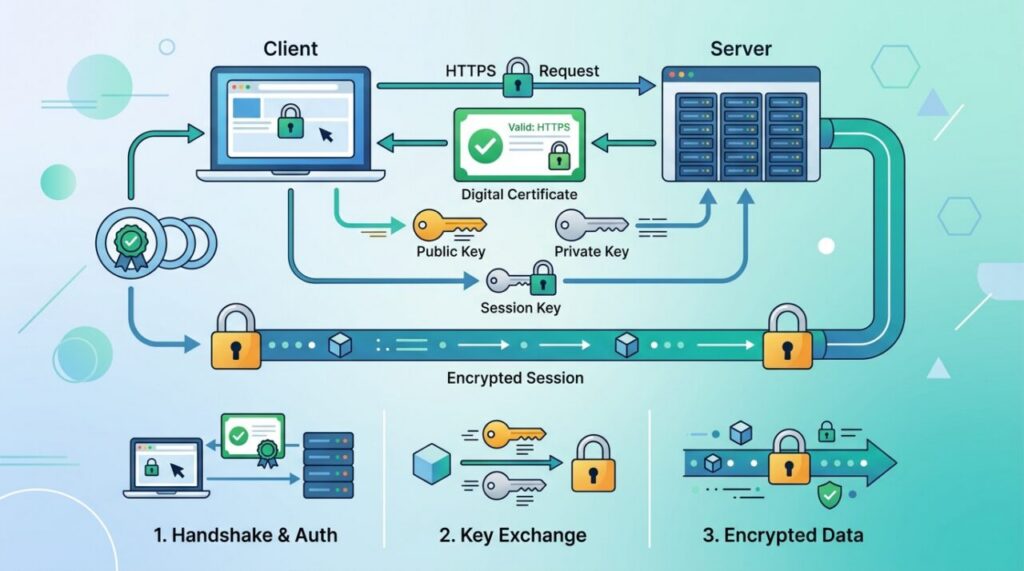

That little padlock in your browser’s address bar is so familiar we barely notice it. But behind it sits one of the most important pieces of engineering on the internet. Understanding how HTTPS works — the encryption that protects nearly every serious website — demystifies online security and explains why that padlock actually matters.
The problem HTTPS solves
Plain HTTP sends everything as readable text. When you submit a password or credit card over HTTP, that data travels across many networks and machines between you and the server — and anyone in the middle (a shared Wi-Fi network, an internet provider, an attacker) could read it in plain sight. HTTP has no privacy and no way to prove you’re really talking to the site you think you are.
HTTPS — HTTP Secure — fixes this by wrapping HTTP in a layer of encryption called TLS (Transport Layer Security, the modern successor to SSL). It provides three guarantees: privacy (data is encrypted), integrity (data can’t be tampered with undetected), and authentication (you’re really talking to the right server).
The two kinds of encryption at play
HTTPS cleverly combines two types of cryptography, because each has a strength the other lacks:
- Asymmetric (public-key) encryption uses a pair of keys — a public key that anyone can use to encrypt, and a private key that only the server holds to decrypt. It’s brilliant for securely exchanging secrets between strangers, but it’s slow.
- Symmetric encryption uses a single shared key to both encrypt and decrypt. It’s fast, but both sides need the same key — and sharing a key over an open network is the whole problem.
HTTPS uses asymmetric encryption briefly, just to safely agree on a shared symmetric key, then uses fast symmetric encryption for the actual conversation. Best of both worlds.
The TLS handshake, step by step
Before any real data flows, your browser and the server perform a “handshake” to set up the secure channel:
- Your browser connects and says hello, listing the encryption methods it supports.
- The server responds and sends its SSL/TLS certificate, which contains its public key.
- Your browser verifies that certificate (more on this below).
- The two sides use public-key cryptography to securely agree on a shared session key.
- From then on, all traffic is encrypted with that fast symmetric session key.
This all happens in a fraction of a second, every time you visit an HTTPS site.
Certificates: how you know the site is real
Encryption alone isn’t enough — you also need to know you’re encrypting data to the right server and not an impostor. That’s the job of the certificate. A website’s TLS certificate is issued by a trusted Certificate Authority (CA), an organization your browser already trusts. The CA verifies the site owns its domain and vouches for it by digitally signing the certificate.
When your browser receives the certificate, it checks that a trusted CA signed it and that it matches the domain you’re visiting. If anything is wrong — an expired certificate, a mismatched domain, an untrusted signer — you get those scary “your connection is not private” warnings. That verification is what stops an attacker from simply pretending to be your bank.
What the padlock does and doesn’t mean
Here’s a common misconception worth clearing up. The padlock means your connection to the site is encrypted and the site’s identity is verified. It does not mean the site itself is trustworthy or safe. A scam site can have a perfectly valid certificate and a padlock — HTTPS secures the pipe, not the intentions of whoever’s on the other end. So the padlock is necessary, but it’s not a stamp of legitimacy.
Why HTTPS is non-negotiable today
HTTPS used to be reserved for login and checkout pages. Now it’s expected everywhere. Browsers actively label plain HTTP sites as “Not Secure,” search engines favor HTTPS, and modern web features often refuse to work without it. Thanks to free certificate providers like Let’s Encrypt, there’s no longer any cost excuse — securing a site is free and automatable.
Seeing it yourself: inspect a real certificate
This is more fun to see than to read about. Click the padlock (or site-settings icon) in your browser’s address bar on any HTTPS site and view the certificate. You’ll find the domain it was issued to, the Certificate Authority that signed it, and its validity window. Prefer the terminal? This one-liner shows a server’s certificate details:
openssl s_client -connect example.com:443 -servername example.com | openssl x509 -noout -dates -issuer -subjectYou’ll see certificates are surprisingly short-lived these days — often 90 days. That’s deliberate: short lifetimes limit the damage of a stolen key and force the ecosystem toward automated renewal, which is more reliable than humans remembering an annual task.
Setting up HTTPS on your own site
A decade ago this meant paying a vendor and wrestling with config; today it’s nearly free and mostly automatic. The typical path: get a certificate from Let’s Encrypt (free), using a client like certbot that proves you control the domain, installs the certificate into your web server, and — crucially — schedules automatic renewal. Platforms like Vercel, Netlify, and Cloudflare go further, provisioning certificates for you with zero configuration.
Two settings separate a decent HTTPS setup from a good one. First, redirect all HTTP traffic to HTTPS so nobody accidentally browses unencrypted. Second, enable HSTS (HTTP Strict Transport Security) — a header telling browsers to only ever connect to your domain over HTTPS, which closes the small window where a downgrade attack could strike during that first redirect. Set it once and browsers remember.
Common HTTPS errors decoded
Those browser warnings all have specific meanings, useful whether you’re a visitor or the site’s operator:
- “Certificate has expired” — the site’s operator let renewal lapse. On your own site, this almost always means the auto-renewal cron/timer silently broke.
- “Certificate name mismatch” — the certificate covers
example.combut you visitedwww.example.com(or vice versa), and the certificate doesn’t include both names. - “Mixed content” — the page is HTTPS but loads some resource (an image, a script) over plain HTTP. Browsers block or flag it, because one insecure script undermines the whole page’s guarantees.
- “Certificate not trusted” — signed by an authority the browser doesn’t recognize; common with self-signed certificates used in development.
Frequently asked questions
Does HTTPS slow websites down? Effectively no — modern TLS adds a few milliseconds to the first connection, and HTTP/2’s performance features (which require HTTPS in practice) usually make secure sites faster overall than plain HTTP ones.
Can my Wi-Fi provider or ISP see what I do on HTTPS sites? They can see which domain you connected to and roughly how much data flowed, but not the pages you viewed, what you typed, or anything in the content. The conversation itself is sealed.
What’s the difference between SSL and TLS? Just age. SSL is the original 1990s protocol, long deprecated; TLS is its modern successor. The name “SSL” stuck culturally — when people say “SSL certificate,” they mean a TLS certificate.
The takeaway
HTTPS protects the web by combining encryption and identity verification. It uses slow public-key cryptography just long enough to agree on a fast shared key, then encrypts your whole session with it — while certificates from trusted authorities prove you’re talking to the real server. The padlock confirms the connection is private and the server’s identity is verified, though not that the site is honest. It’s the invisible foundation that makes safe online banking, shopping, and logins possible.